Friday, 28 September 2018

Web Browsing Tricks


Jump to the address bar There are a number of ways to jump to the right of the address bar from anywhere on the browser. Pressing Ctrl + L, F6, and Alt + D will do all this.

Automatically add www and com to a URL You can delete a few seconds by typing in a URL by clicking Ctrl + Enter after typing the site name. Need .net instead of .com? Sign in with Ctrl + Shift +.

Cycle through open tabs by pressing Ctrl + Tab while flicking in the browser between each one (Ctrl + Shift + Tab to go back). This can be much faster than moving a mouse and clicking on a sheet. Ctrl + Num (1, 2, 3, 4, n ..) Also takes you to a specific tab in that number. Ctrl + 9 always take you to the last tab, even if it's more than ninth.

Navigate the pages with the space bar Use the bar spacing on a website at the bottom of the page to scroll down and tapping + space to take you back.

Instant Image Search (Chrome Only) If you hold down the S key and right-click an image, an image search opens in a new tab.

Using private browsing to use cookies and storing history for certain activities you know, such as buying gifts on a shared computer (albeit!), is clear. Pressing Ctrl + Shift + N will launch new private Chrome, Ctrl + Shift + P will do this in Firefox and Internet Explorer.

Turn your browser into a notepad. Type in your address bar and you can read notes. Instead, while not as fast. Use Google Keep or Gmail to write notes, and save them when you type them and go them in the cloud.

Bookmarks Only on the toolbar you can delete your bookmarks name from the icon only to have fewer space in the toolbar. In Chrome: Click the badge> Edit> Delete name and save.

Use the scroll wheel to put your mouse button to use by clicking on the link to automatically open them in a new tab / window. Also, if you use the rotate button in the tab, it closes it.

Copy Link Quicker Right-click the link as usual but tap E on your keyboard to copy the link.

Editing Content Creating Console in Chrome or Firefox (Right-click, Inspecting). In the console, enter the command document.designMode = "on", which allows you to edit any text on the page.

Zoom in, resize zoom Use the browser magnifier to set a website for easier reading. Ctrl / Cmd + (sign + / minus) is a trick. Use Ctrl + 0 to reset to the default zoom level.

These days, everyone is expected to be up to speed on Internet Tips search techniques. But there are still a few tricks that some users

Typing Tricks


Copy plain text of what has been copied. When copying text from any source, the program usually includes any formatting. To put this title as plain text, press Ctrl + Shift + V instead of the standard Ctrl + V and fill out non-text text system. It also works on Mac: Cmd + Shift + V.

Note that many but not all programs follow this parameter, especially Microsoft programs such as Word or Outlook, which are annoying. There are several alternatives that go beyond copying and pasting in a notepad: 1) Ctrl + Alt + V shows a special dialog box. 2) Ctrl + Spacebar deletes the formatting in the currently loaded text. 3) Download Puretext and the shortcut key to always leave plain text with it.

Delete the whole word. Instead of deleting a word, delete the entire word behind the display by pressing the Ctrl + Backspace key. This causes the text to be deleted faster if the whole word is screwed in.

Move the cursor to the start of the next or previous word Move the cursor around the hand while typing is a great way to work longer than it needs. To accelerate the process, move the cursor with keyboard shortcuts. Use Ctrl + Left Arrow to move it to the beginning of the previous word. Use Ctrl + Right Scroll to move it to the beginning of the next word. In MacOS, you can do the same as using the Option key. To select words / paragraphs as you wish, hold Shift + Ctrl + Arrow (select all or more text).

Creating the following text and text If you need to create the following text or text above (think the index for the above elements), press Ctrl + = for subtitles and Ctrl + Shift + = for numeric.

Use the Windows character to identify and create external icons. Search the "Start" menu for "Character Map" and you'll need to find a tool to copy any imaginable character and even use an Alt + Numpad code for later use. For example, the euro (€) can be made with Alt + 0128.

Best Computer Tips and Hacks 2018, I'm sure that by knowing all these tricks you will be the smarter than other in the virtual or say computer world.


Tips and tricks of the computer should all know


Computer Tips & Tricks

Easily extract images from a Word file (.docx). Rename the file name from .docx to .zip and open the file. Images will be placed in one of the directories.

Finding and Removing Large Space Files Wonderful Space A useful tool called Space Sniffer can easily find which files and folders get the most of your drive space. From there, you can delete them and open up a ton of storage space. Other Windows Options (Free) include WinDirStat and TreeSize. In MacOS, you can use Finder to find large files without a third-party app, but we'd love to use Grand Perspective.

Delete the Windows.old folder. If you have too much space and do not think that you are incompetent, you can easily ignore the folder and automatically delete it after 30 days. But if you're using storage space, you can easily remove your Windows utility.

Command prompt here In Windows Explorer, type cmd in the address bar and open the command line in that folder.

Reducing the number of programs that start at startup. If your computer is too long, it's probably because you run a lot of programs at startup. This reduction can be easy and will make your PC appear faster. Make sure you do research that you turn off because some processes may be required by third-party applications that you have installed.

 
Windows: Open the task manager (Ctrl + Shift + Esc) and go to the Setup tab to configure what programs you want to launch with your system.
 
Windows 7 and earlier: Open (Windows + R) and log in to msconfig to access a window with a similar setup section.

MacOS: Go to System Settings> Users & Groups> Select your user and click on the Login Items tab. You can remove or hide startup programs from here.

Windows Windows Hidden "god mode" Windows folder offers a centralized control panel for all OS configurations, making it easy for users to adjust everything from the desktop background to launch a VPN. To enter this mode, create a new folder with the exact name (Copy and enter it): God Mode {ED7BA470-8E54-465E-825C-99712043E01C}. The folder icon changes to the control panel icon, and you can fill out and change all the settings.


Tips and tricks of the computer should all know

Many hardcore computer users may consider themselves to be more than learning new tricks, but there are always new ways to sharpen your skills on a computer, and we assume that there is at least one useful thing here that is not already there. You know about Computer Tips.

We've compiled some of the computer-friendly scams that you should use. The ultimate goal is to help you with more efficiency by taking away valuable days from your workflow. Of course, you can never give these tips to your friends and family, and help them get better computer users.

The guide for key tips and tricks was released in 2013. After reviewing this article, we discovered some of the things that were no longer relevant and added a lot of others that should be on the list. The main guide is also very much Windows-based and continues to go a long way, however, we've added a lot of MacOS equations and information about shortcuts that are usually used by powerful desktop users.

Public scam

Restoring a tabbed tab We've dedicated a web surfing part down the bottom, but this one is very useful when it's gone. Incidentally, a tab is closed, simply press Ctrl + Shift + T to open the tab for the newest package and return to what was done (Cmd + Shift + T on the Mac).

Snap a window and control multiple monitors by pressing the Windows key + the arrow keys makes a window move quickly to each side of each monitor. In short, tapping Shift + Windows Key + Flash will cause the window to jump to another monitor. While pressing Windows + P allows you to quickly set up a second projector or projector.

As we've already mentioned, in macOS we use mission control capabilities to manage virtual desktops, switch between programs and the beauty of our desktop. Although the Mac does not support a box from the box, the $ 1.99 program called Magnet is strongly recommended.
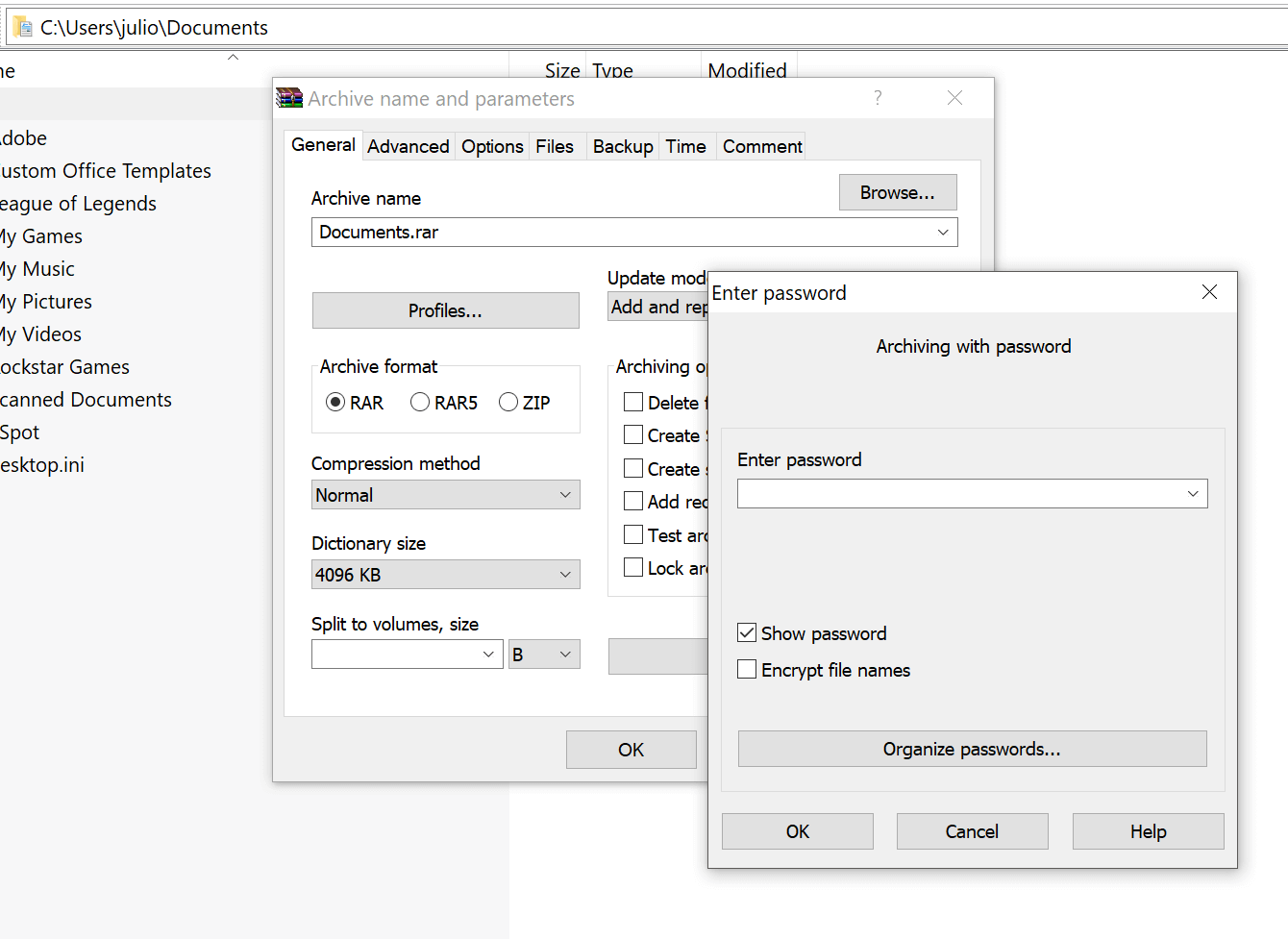
Password protection files A simple way to lock access to certain files is to create encrypted archives. Your chance to install a version of 7-Zip, WinRAR or Unarchiver (Mac) or its equivalent. Create a new archive, encrypt its contents and protect your password.


Cancel all these to solve these small mistakes. Did you know that you can cancel almost any action? Ctrl + Z is the final key, and you're sure to know about it right now, but note that cancellation does not apply to typing only. If you accidentally delete or move a file, you can hit Ctrl + Z to return it to the desired location (Ctrl + Y will do anything you open again).

YouTube Keyboard Shortcuts If you think it was effective by using the space to pause a YouTube video (except when the focus is elsewhere and does not work), instead try to use K to stop, while That J and L move 10 seconds backward / forward. M works extremely useful for shutting down

The screenshot like you mean it simply hit the screen on your keyboard, the easiest way to capture a photo. But Windows and MacOS provide several other ways for the photo, many of which are better options. But then, take a photo and annotating there.

Powerful Windows user menu You can open a quick list of common users of power in Windows by right-clicking on the bottom right of the start button on Windows 8 and 10, which displays the context menu with shortcuts for Power Options, Viewers Event, Device Manager coming soon. This menu is also accessible by pressing the Windows + X key.


Visit Website:  www.computerfreetips.com